Gaming Recliner Ergonomics: Legrest Angles That Save Your Back
By Mateo Li • 2nd Sep
What to do first
There is no proven gaming-recliner legrest angle that “saves your back.” Start with a supported, reachable posture, then adjust recline and legrest settings only if your back stays against the support, your head remains balanced, and your controls remain easy to reach.
- First action: Run a brief fit check: support your feet, settle fully into the backrest, keep shoulders relaxed, and verify clear screen visibility and control reach.
- Stop or escalate when: Stow the legrest or reduce recline when your neck cranes, shoulders lift, or back contact is lost. Change position regularly; persistent, severe, radiating, or worsening pain needs individualized professional assessment.
Important: Research has not established a best legrest angle, gaming-specific setup dimensions, or performance benefit from reclining. Individual fit matters.
Gaming chair ergonomics is not about finding a magic legrest angle that "saves your back." No good evidence establishes one. It is about building a supported position based on spinal alignment you can leave easily: back supported, feet supported when you are working at a desk, controls and screen still reachable, and enough movement that you do not get locked into one posture for an entire session.
That distinction matters. A reclined position still needs to preserve back support, screen visibility, and easy control reach throughout the session.
Stability is speed when posture and hardware lock in.
The Problem: A Legrest Requires a Setup Check
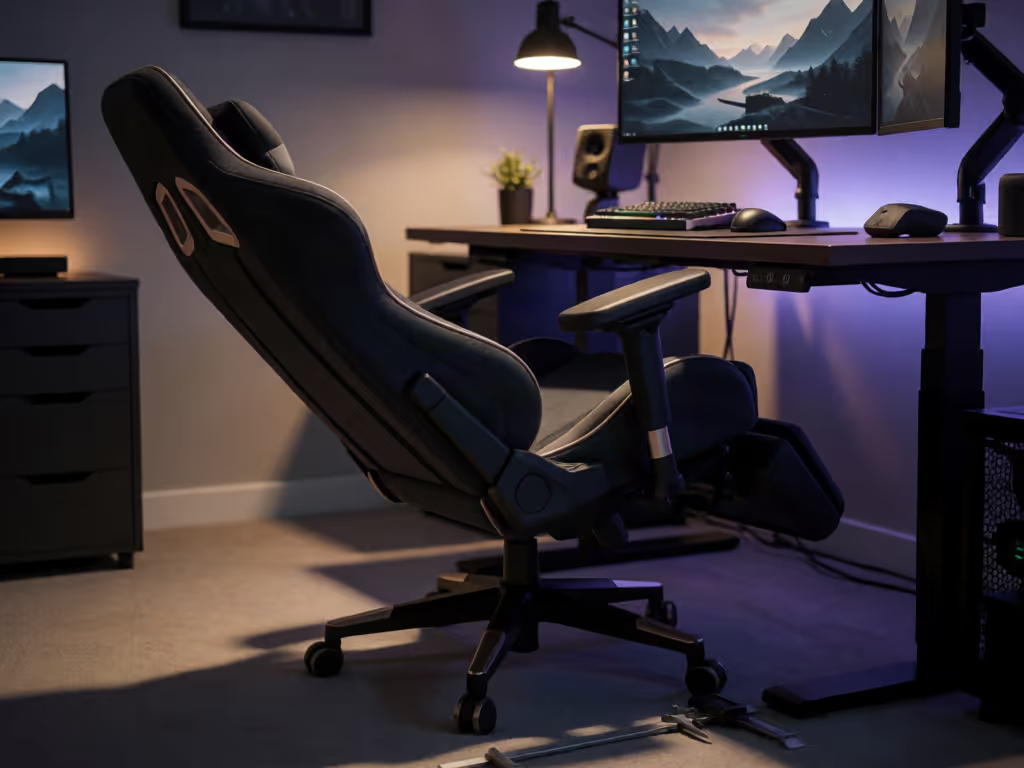
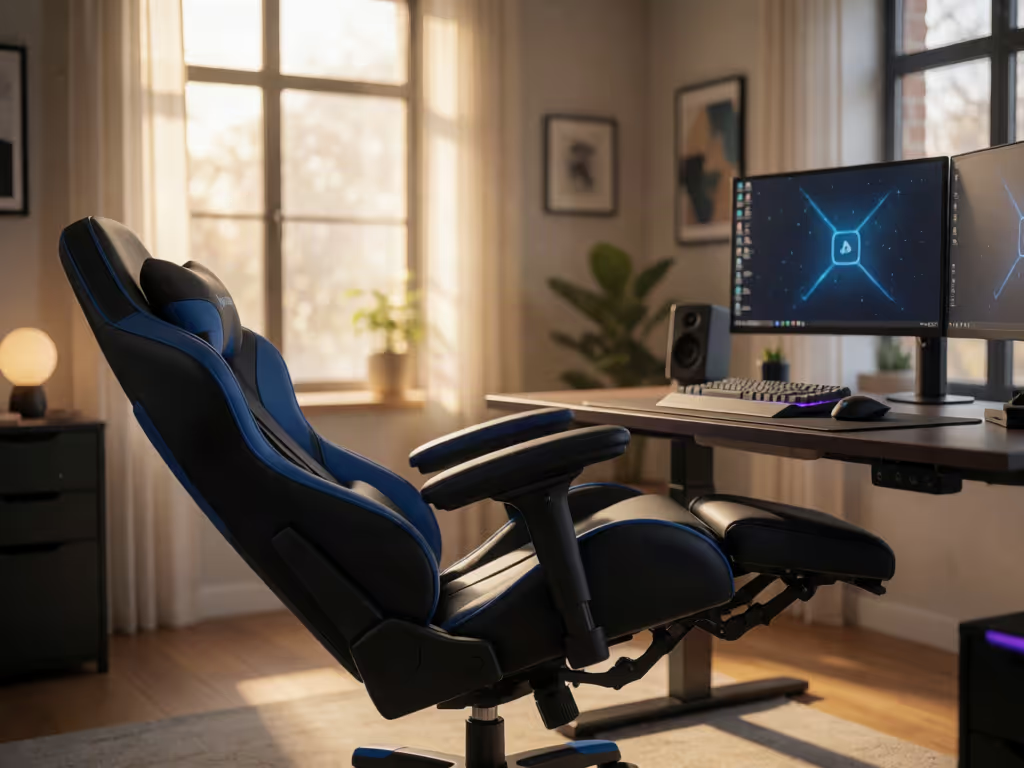
If you are comparing chairs with this feature, our gaming chair footrest guide can help you evaluate integrated footrests beyond their advertised recline range. For active play, use a posture that does not interfere with reaching your controls or seeing the screen.
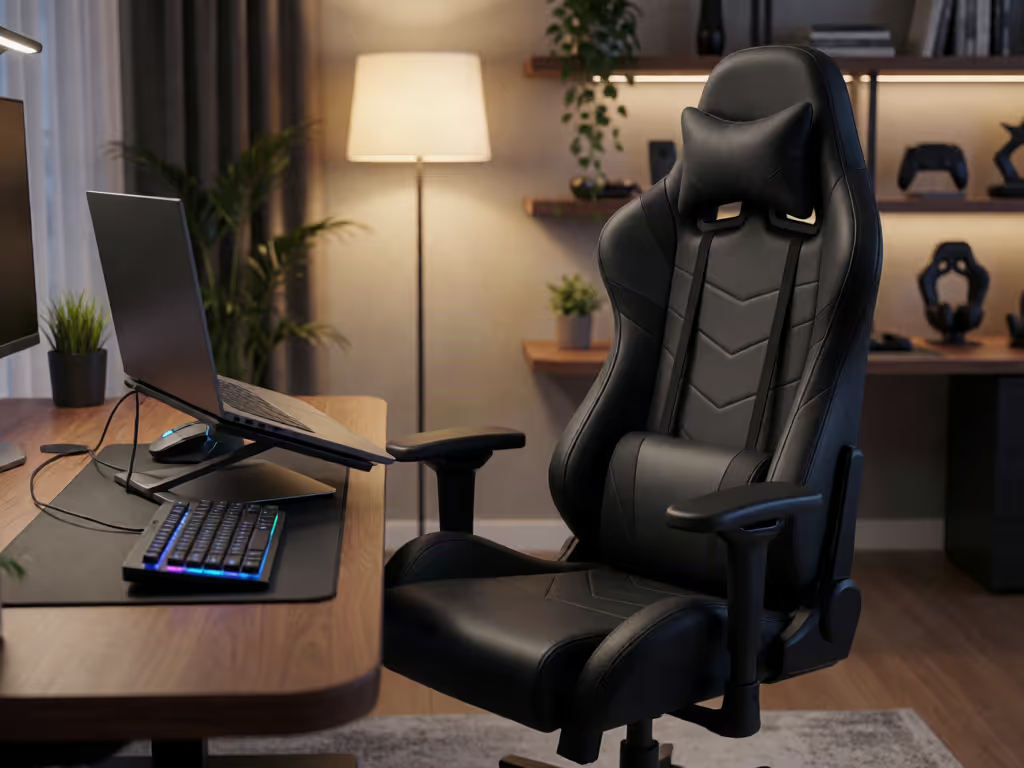
For desk play, the basic workstation target is less glamorous but more useful:
- Back: fully supported, including appropriate lumbar support.
- Feet: fully supported by the floor; if desk height cannot be adjusted, a footrest can provide support.
- Shoulders: relaxed rather than lifted toward the ears.
- Elbows: close to the body, generally within a 90–120-degree bend.
- Wrists and forearms: straight, in line, and roughly parallel to the floor.
These are workstation principles, not a claim that every gamer needs one identical pose. Bodies, desks, screens, and input methods differ. But they give you an audit trail: when a reclined setup feels wrong, check support and reach before blaming the chair.

Why "The Best Legrest Angle for Gaming" Is the Wrong Question
There is no established legrest angle for gaming that can be prescribed for back health. The available guidance addresses the relationship between the torso and thighs, not the angle of a recliner's calf support, knee bend, or footrest extension.
For computer workstations, a reclined reference posture places the straight torso and neck at 105-120 degrees from the thighs. Treat that as a starting reference for the backrest, not a command to set your recliner to a certain notch and extend the legrest to match.
Biomechanics research is also a warning against overconfidence. A small study of five healthy adults using a prototype office chair found substantial differences between people in how spinal curves changed from upright to reclined sitting. In plain language: the same recline is not guaranteed to behave the same way in every body.
So skip the universal-angle hunt. Run a fit test instead.
The three checks that matter
With the legrest deployed, ask:
-
Can you keep your back in contact with the backrest? If you have to slide forward to make the legrest feel comfortable, the setup has failed the support check; adjusting the chair's lumbar support system may help you maintain contact without forcing a deeper recline.
-
Can you see the screen with your head balanced over your torso? If your chin starts jutting or your neck has to crane, reduce recline, change screen placement, or stow the legrest.
-
Can you reach your controls with relaxed shoulders? For active desk use, if the keyboard, mouse, or controller position makes your shoulders rise or pulls the elbows away from your sides, the reclined-legrest configuration is too aggressive for that task.
Those checks are more reproducible than copying a creator's preferred angle, and more honest than a promise that elevation alone fixes discomfort.
Agitate: Static Comfort Is Still Static
The real trap is staying in a "good" reclined position too long. Even a well-supported working posture should not be held continuously. Change position frequently, make small chair or backrest adjustments, stretch, and periodically stand or walk.
That is especially relevant for players who switch between focused desk rounds and relaxed controller sessions. For active play, do not use a legrest setting that prevents a supported posture, easy control reach, or clear screen visibility.
A chair that only feels good at one locked angle is working against you. Cornell's chair-selection guidance favors backrests that recline easily, support the back across different recline postures, and track where the user's back is. Permanently locking the backrest in one position is generally not recommended.
The lesson is not "recline more." It is that support and reach have to agree.
Solve: Use Two Presets, Not One Forever Position
Lock the base, then tweak. Start with the setup that has the fewest moving parts, then layer in recline and legrest use only when each change preserves support.
Preset 1: Active desk gaming or hybrid work
Use this for mouse-and-keyboard play, work, or any task that requires frequent precise reaching.
- Set seat height so your feet are fully supported and your shoulders can stay relaxed at the desk.
- Sit back so the lumbar area supports your back rather than pressing behind the knees.
- If the front edge of the seat catches behind your knees or stops you from reaching the backrest, the seat depth is not working for you.
- Keep the legrest stowed unless it can be used without losing back contact or control reach.
- Use modest, easy recline movement rather than forcing one fixed angle.
One manufacturer guide for desk-based mouse-and-keyboard use recommends elbows at roughly 90-110 degrees with forearms parallel to the floor or slightly downward. That is a useful arm-alignment check, not a performance claim and not controller-specific guidance.
Preset 2: Relaxed controller or viewing mode
Use this when your controller is already within easy reach and your screen remains visible without head-forward posture.
- Recline only until the torso remains straight and supported.
- If you use the legrest, keep the selected posture supported and make sure it does not interfere with control reach or screen visibility.
- Keep the controller close enough that you do not round the shoulders forward to hold it.
- Recheck screen visibility after every recline change.
- Return to a more upright position before the reclined posture becomes a long, static hold.
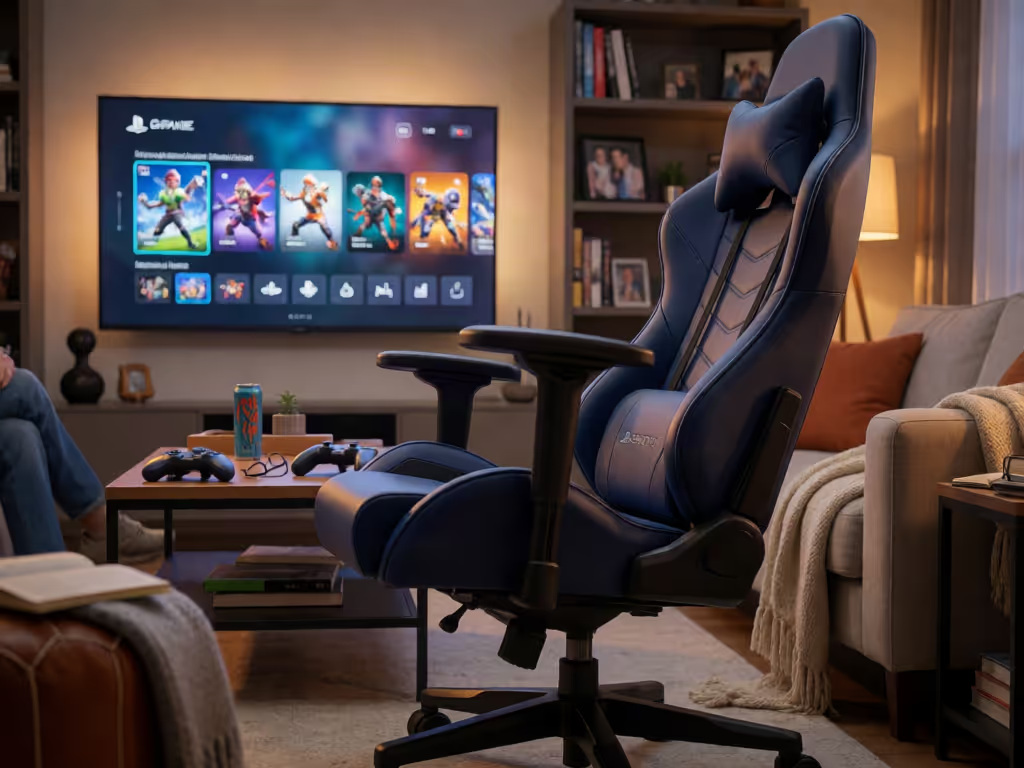
A manufacturer may describe a continuous seat-and-footrest surface as an integrated recliner, while another chair may use a footrest that pulls out from beneath the seat. That tells you how the mechanism is arranged; it does not prove that one design is ergonomically better. Your support-and-reach test decides it.
Reclining Office Chair vs. Tilt: What Actually Matters
People often lump every moving chair into the same category. In practice, focus less on the label and more on the movement outcome.
An office reclining chair should let the backrest move easily while continuing to support your back in more than one posture. A recliner-style design may also have either a pull-out footrest or an integrated footrest that moves as part of the seat. Those mechanisms serve different relaxation preferences, but neither supplies a validated "correct" legrest angle.
Your purchase or setup checklist is short:
- Does your back remain supported at more than one recline position?
- Can you reach controls and view the screen without compensating with your neck or shoulders?
- Does the seat depth let you sit fully back without pressure behind the knees?
- Can you change posture smoothly instead of being forced into a single locked pose?
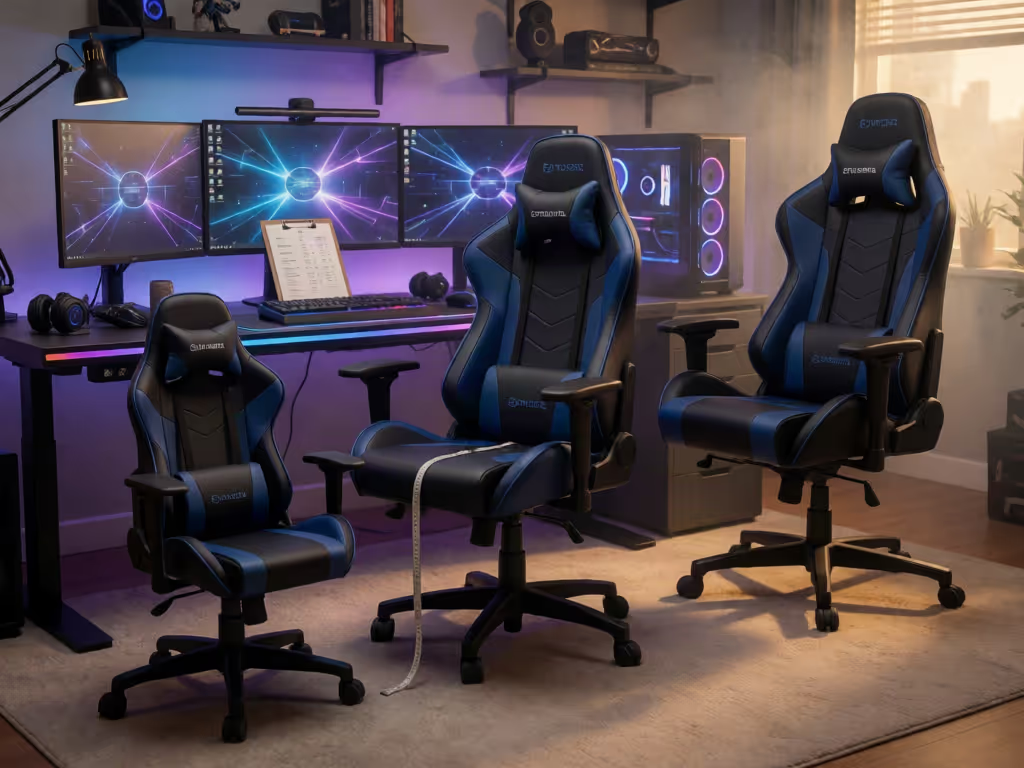
That is a stronger filter than browsing lists of the best gaming recliner chairs or searching for the best gaming recliner. There is no independent comparison here that can name a universally best model. Assess fit, support, and reach in your own setup instead.
FAQ
Do gaming chairs have good ergonomics?
The evidence does not evaluate gaming chairs as a category. Assess any chair by fit, full back support, appropriate lumbar support, foot support where needed, and easy posture changes rather than treating the label as an ergonomic verdict.
What is the correct sitting posture for a gaming chair?
There is no single gaming-specific posture for every person. For desk use, prioritize naturally aligned joints: relaxed shoulders, elbows near the body, straight wrists and forearms, supported back, and fully supported feet. Change position frequently rather than trying to hold a perfect pose indefinitely.
Your Next Session: Run the 60-Second Recliner Audit
Before you queue, sit in your normal position and perform this sequence:
- Settle your back fully into the backrest.
- Confirm your feet are supported, or stow the legrest for desk play.
- Check that your head can face the screen without reaching forward.
- Reach your controls with relaxed shoulders.
- Recline or extend the legrest one step at a time, stopping the moment any of those checks breaks.
The winning setting is not the deepest recline. It is the one you can enter, exit, and repeat without losing support or reach. If pain is persistent, severe, radiating, or worsening, get individualized advice from an appropriately qualified healthcare professional.
Related Articles